Hikvision
How to configure a DVR / HDR to monitor it:
Hikvision P2P
Login to your Hik Connect account.

Select and share all the CCTV recorders you want to add to the amrconnect system.

Enter your amrconnect account email (your_company@amrconnect.com)
Check the green checkbox and click share.
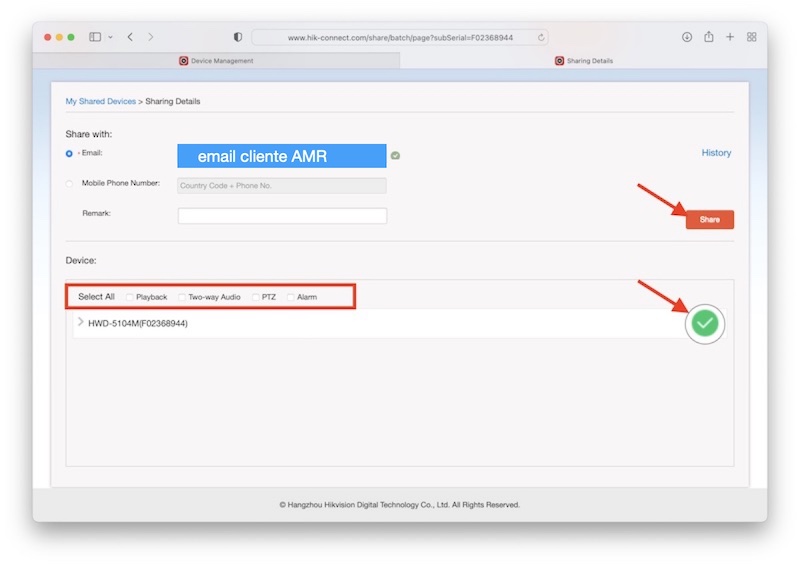
Check the list of shared devices.

Go to the Hik-connect portal and now log in with the amrconnect user (your_company@amrconnect.com)
Validate all the computers you have shared so that they can automatically enter the system.
Go to your amrconnect portal with your credentials and in a few minutes the new shared equipment will be available
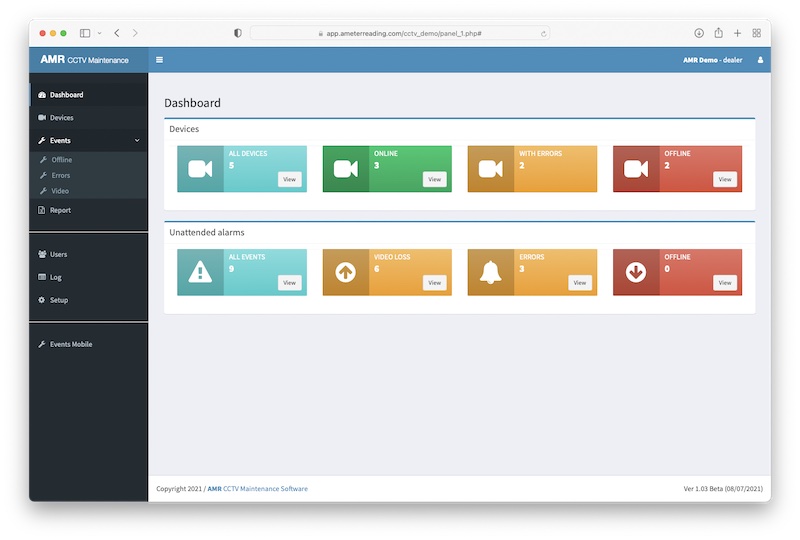
Hikvision - Alarm center
Enter your recorder setup: Network / Advanced settings
Indicate the IP and the port that we have provided in your configuration and press "Save".

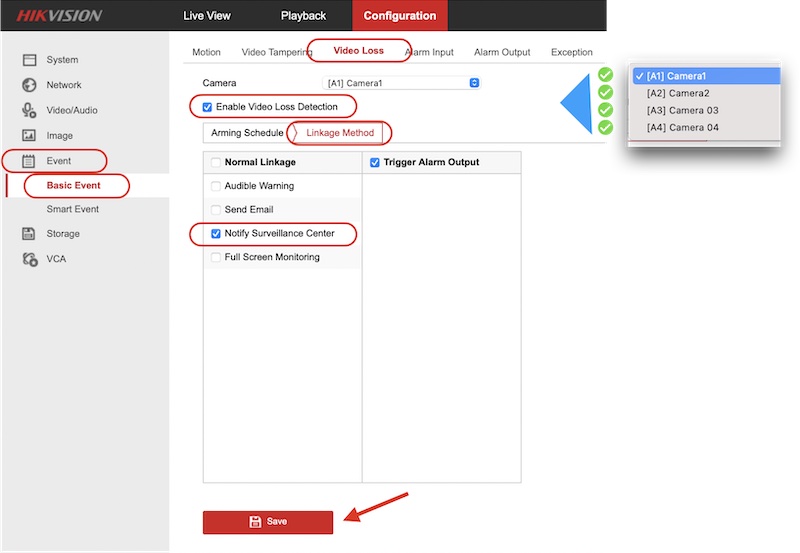
Select all the events you want to receive related to the HDD.
Check the box: Notify Surveillance center and click "Save".

Do the same for video notifications for all cameras. Press "Save" at the end.
Now any event that happens will automatically appear in the amrconnect dashboard.
Hikvision - open port
From the amrconnect webapp, select "Devices" / "Add new Device"
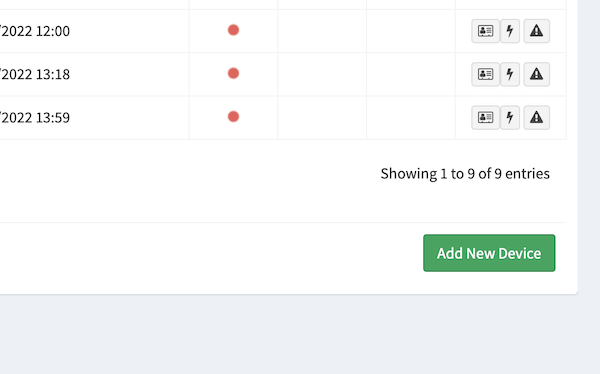
Fill in the form with domain, port and credentials so that the system can check connectivity, status of disk(s) and clock out of time.
Once the data has been entered, press "Test & Save" and the device will appear in the list of devices.
