Dahua
How to configure a DVR / HDR to monitor it:
Dahua P2P
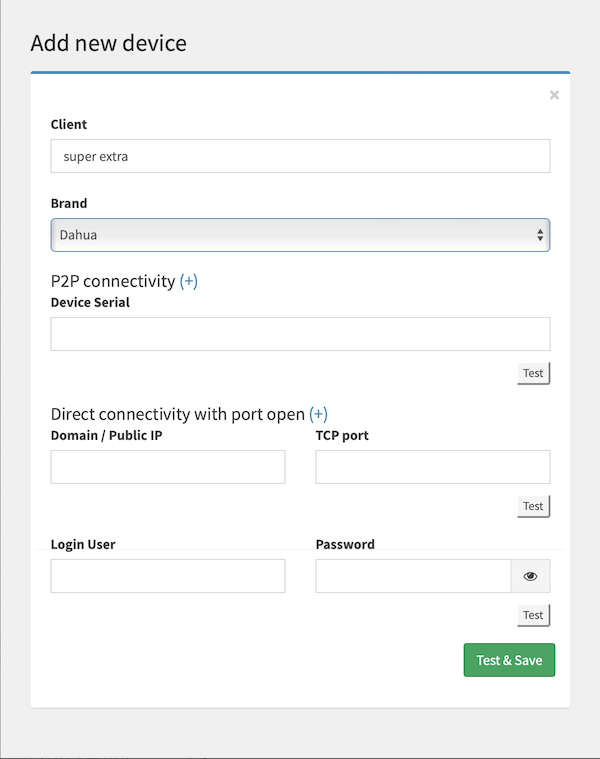
From the amrconnect webapp, select "Devices" / "Add new Device"
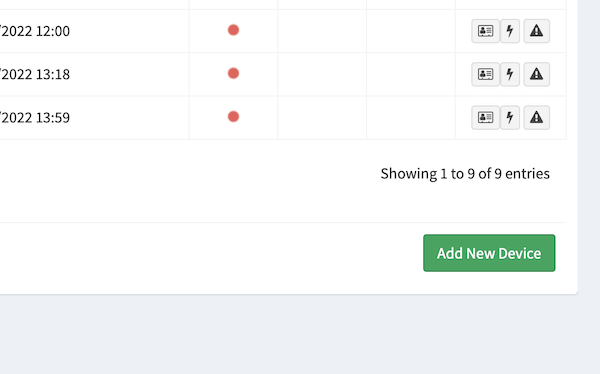
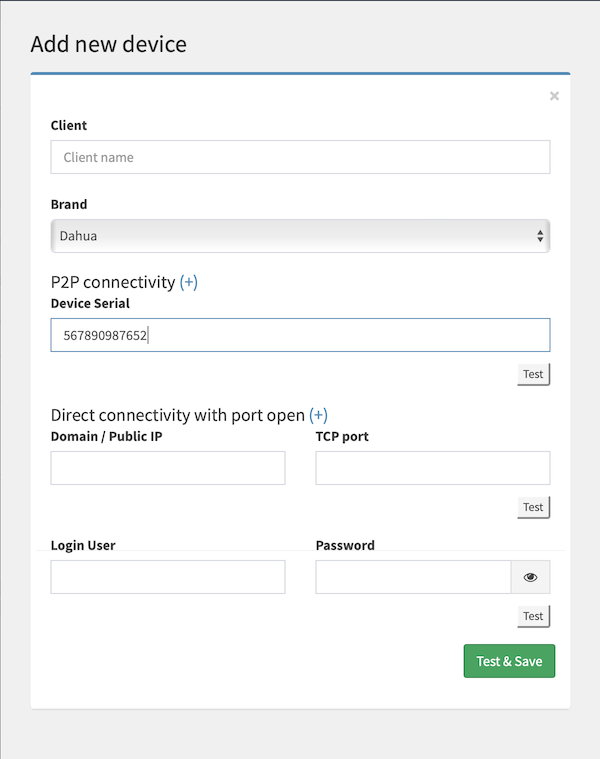
Select "Dahua" and fill in the serial number in the form.
Press "Test & Save" and it will be added in the list of "Devices"
Dahua Register
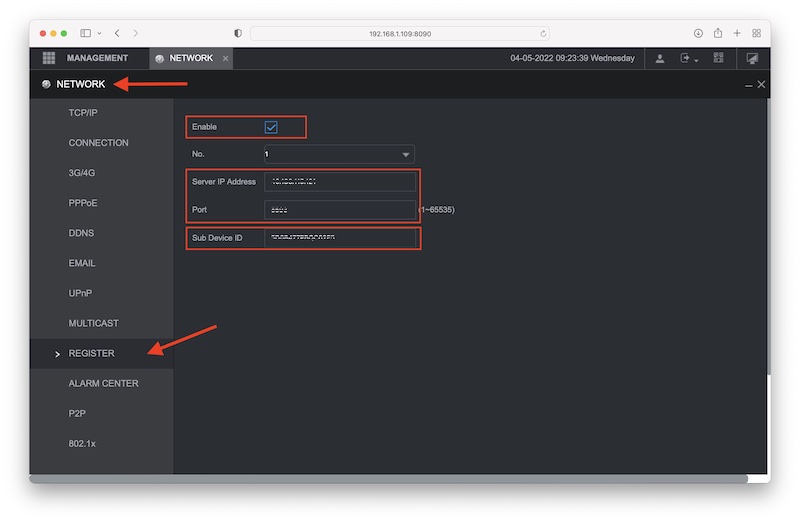
Go to the menu Network / Register / Enable
Indicate server IP and port that appears in the Amrconnect configuration.
Copy the exact serial number of the DVR in the Sub Device ID field.
From this moment on, the recorder will notify its status directly to the amrconnect server, independently of the P2P cloud.
Dahua - Alarm center
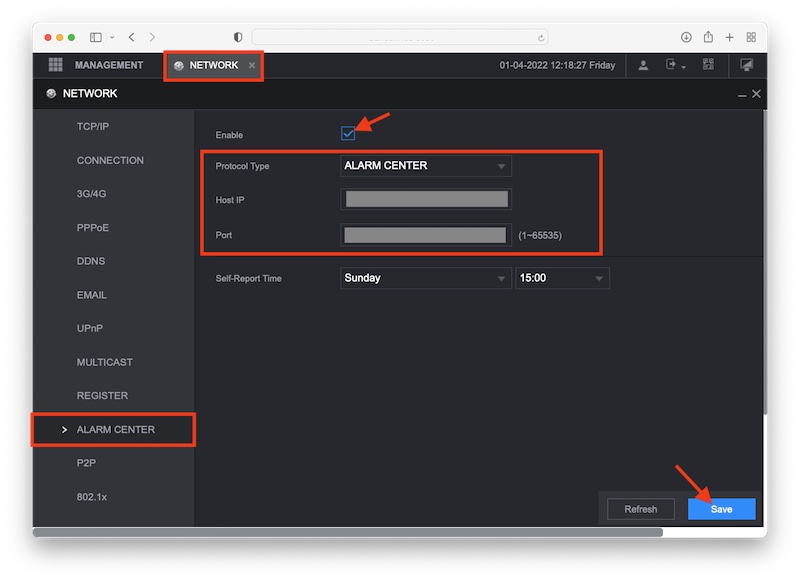
Enter your recorder settings: Network / Alarm center
Indicate the IP and the port that we have provided in your configuration and press "Save".
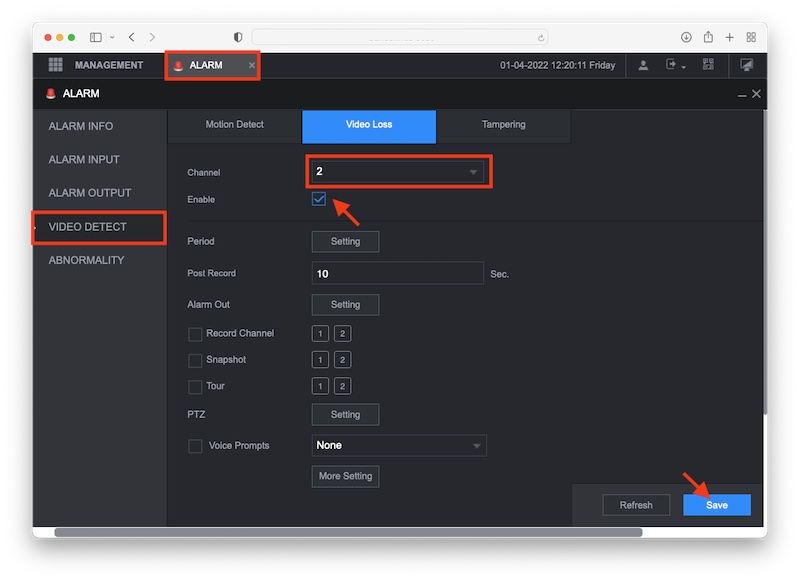
To receive video notices. Select Alarm / Video detect / Video Loss.
Check "enable" on all channels and press "save".
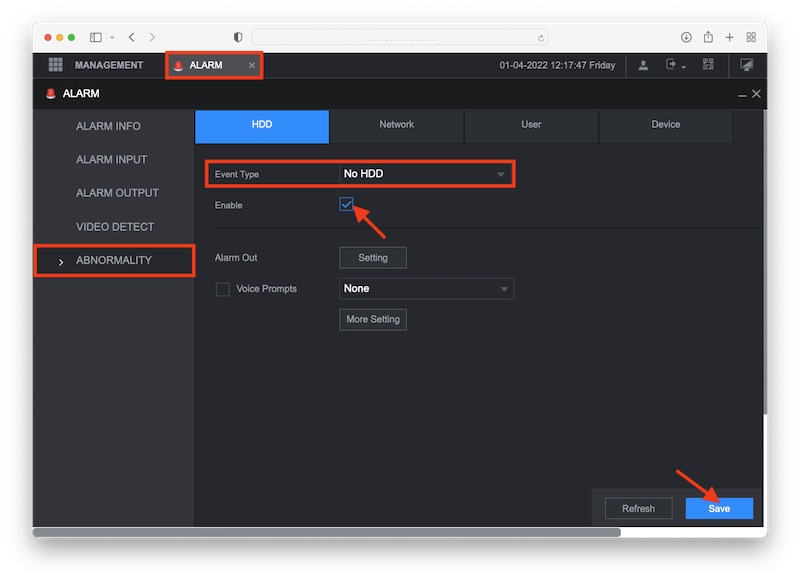
Do the same with hard drive notifications. Alarm / Abnormality / HDD and press "enable". Repeat the action on all the events you want to receive notifications from. Press "save" and exit.
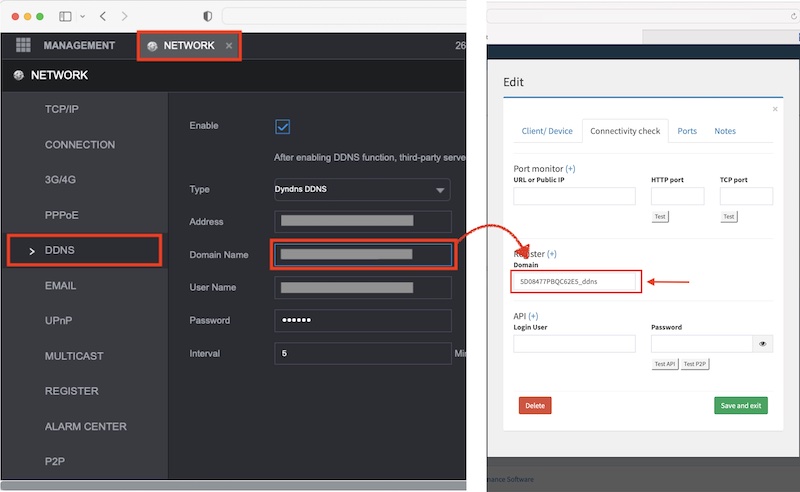
Open the menu, Network, DDNS and copy the "Domain name" to paste it in the recorder file in AMR connect. This way, when an alarm comes in, the system will be able to associate it with the correct CCTV device.
The events that are received will generate an automatic ticket in the system.
Dahua - open port
From the amrconnect webapp, select "Devices" / "Add new Device"
Fill in the form with domain, port and credentials so that the system can check connectivity, status of disk(s) and clock out of time.
Once the data has been entered, press "Test & Save" and the device will appear in the list of devices.