Common for all brands.
Tickets or events:
Views and filters
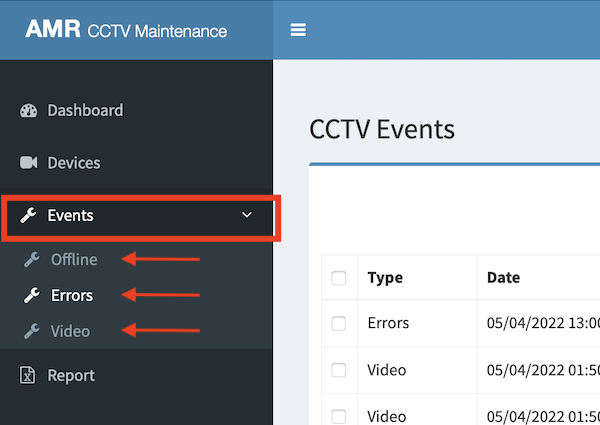
In the menu select 'events' to see all events together.
You can search for a serial number, and you will see all the events associated with this number.
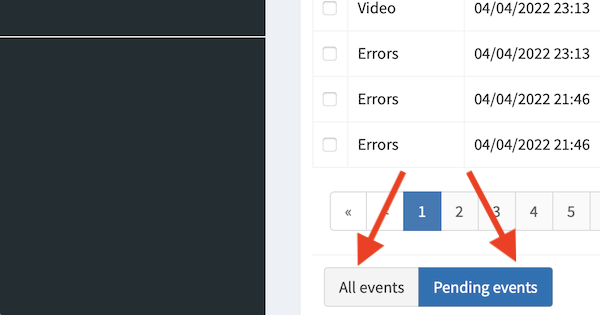
By default you will see the pending events, but you can also see all of them by clicking on 'All events'.
Edit - right buttons
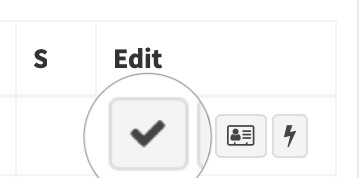
From the amrconnect webapp, select "Events" - "Edit" buttons on the right.
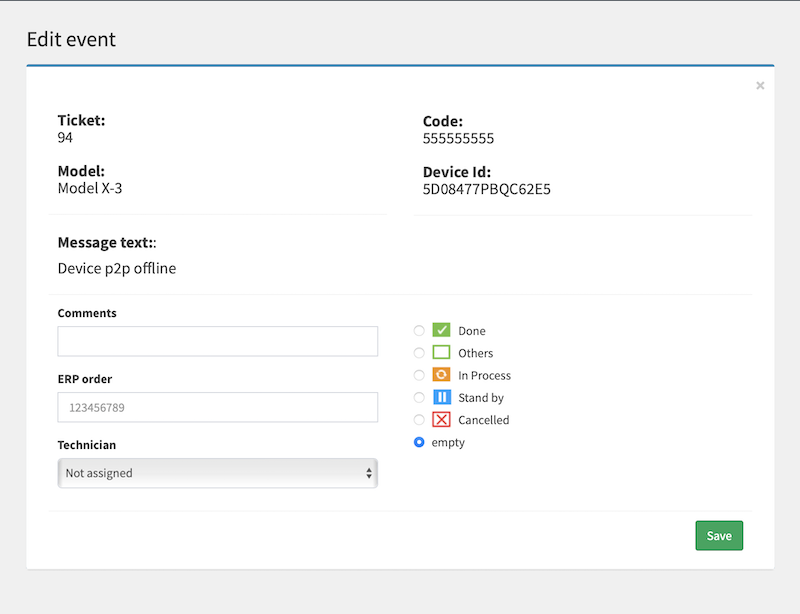
In the first part there are the details of the device.
At the bottom you can add comments, order number and assign the ticket to a technician.
The field technician will get a notification by email as soon as the ticket is assigned.
In the bottom right, you can change the status:
Cancelled – Disappears from view. If the event resolves itself, it is assigned this status automatically.
Stand by - in process: Pending resolution
Done - others: Solved. It also disappears from the pending list.
Edit - right buttons
From the amrconnect webapp, select "Events" - "Edit" buttons on the right.
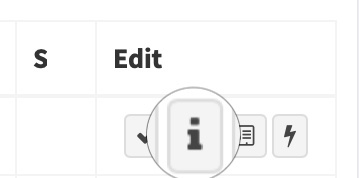
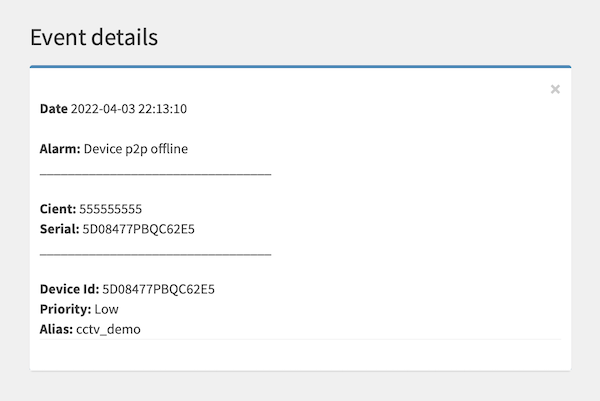
Ticket date and description
Client and device identifier
Edit - device file
From the amrconnect webapp, select "Events" - "Edit" buttons on the right.
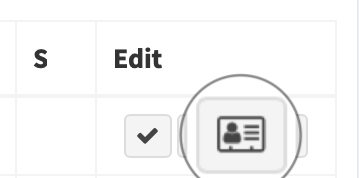
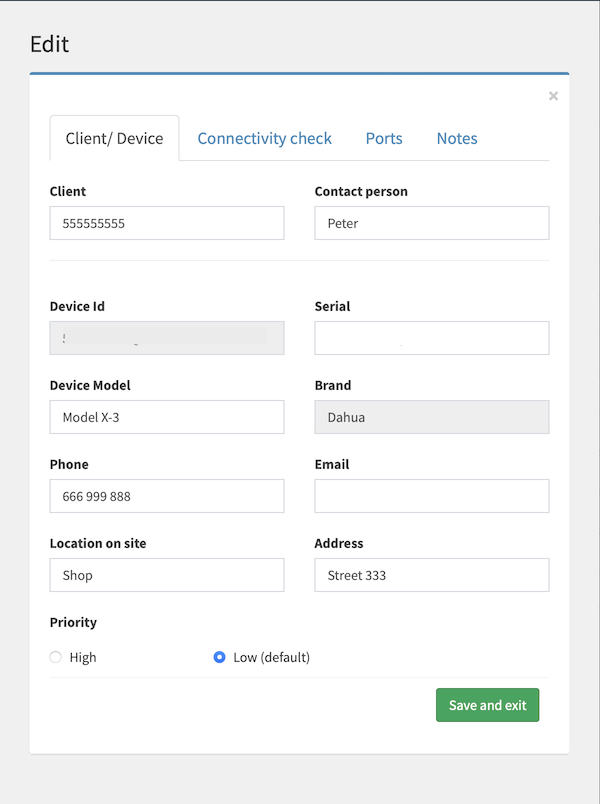
Add or edit customer data.
This data is useful when an event is notified, so the customer's phone number or name are shown.
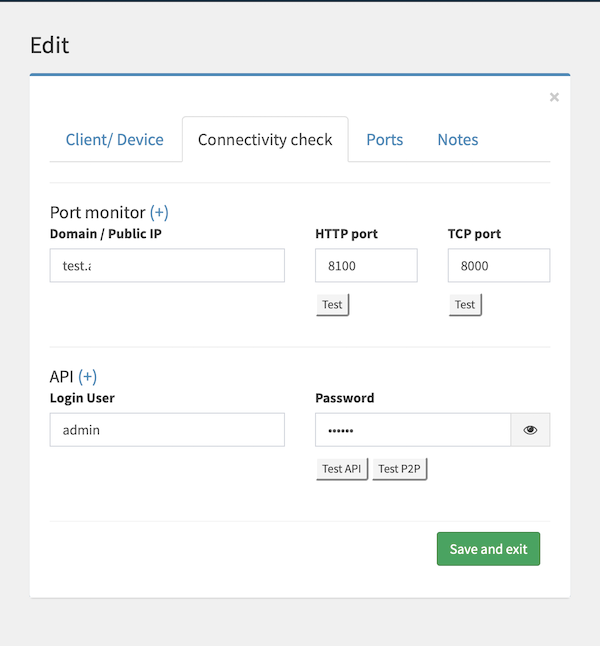
These are the key data for device connectivity. See more details in the support menu by brand.
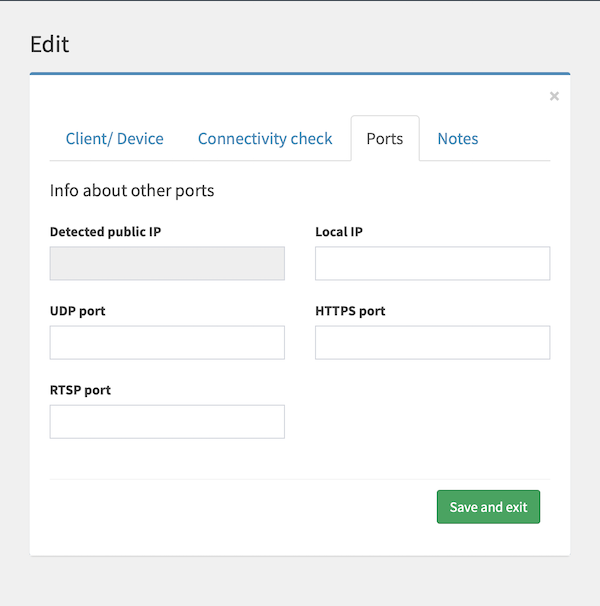
Here the other ports will be saved as an annotation. This data is not used in amrconnect connections.
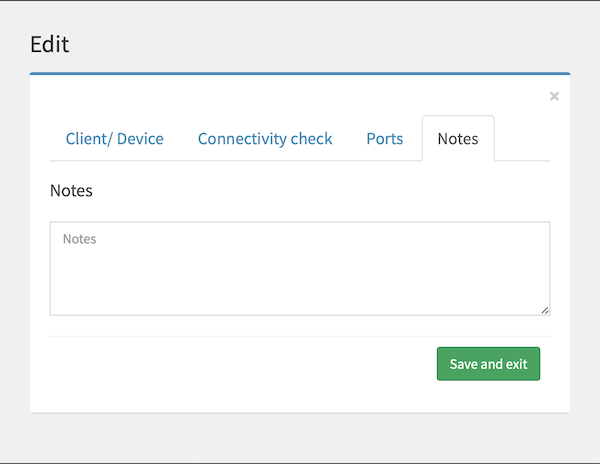
Just some notes:
Connection test now
From the amrconnect webapp, select "Events" - "Edit" buttons on the right.
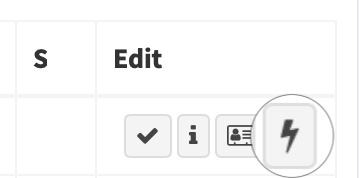
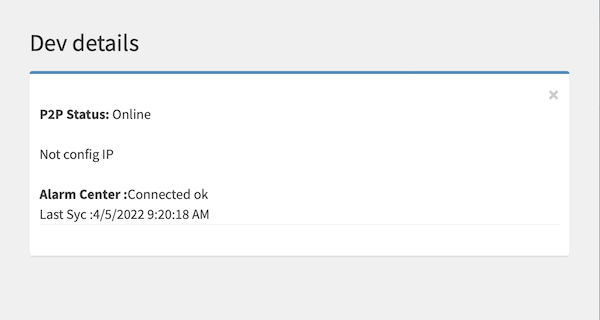
By pressing the lightning, a connection is made instantly to the P2P, the direct port and the alarm center if they are configured.
Bulk edition
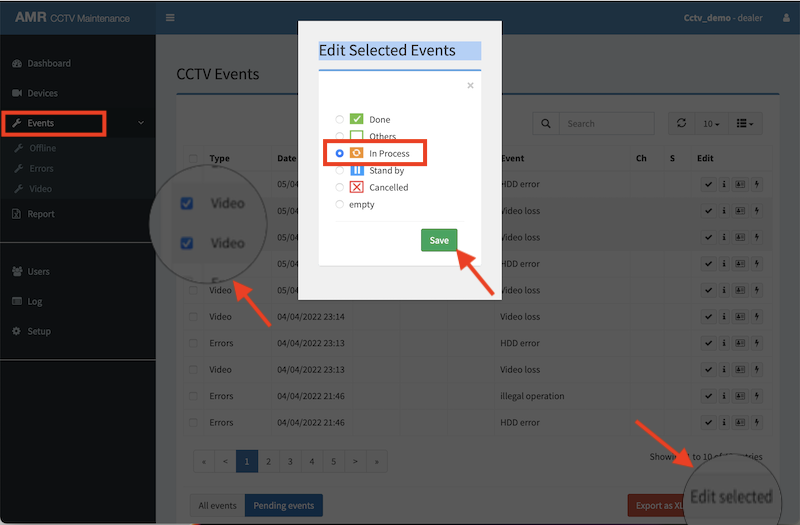
You can select multiple lines, click 'Edit selected' and mark a new state for the selected events.